MS Paint Image Generator

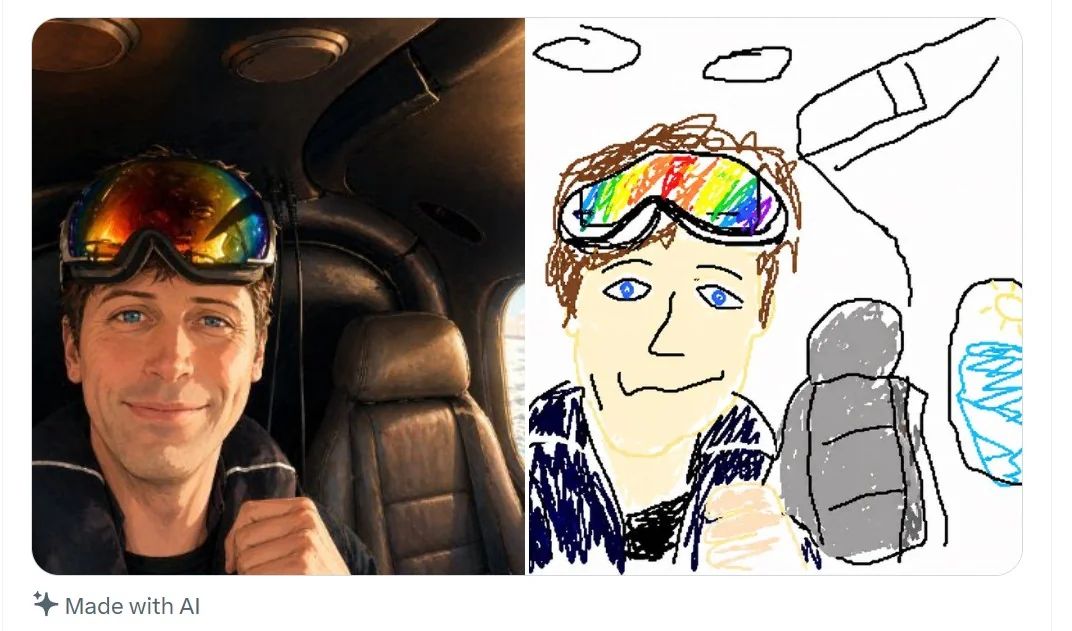
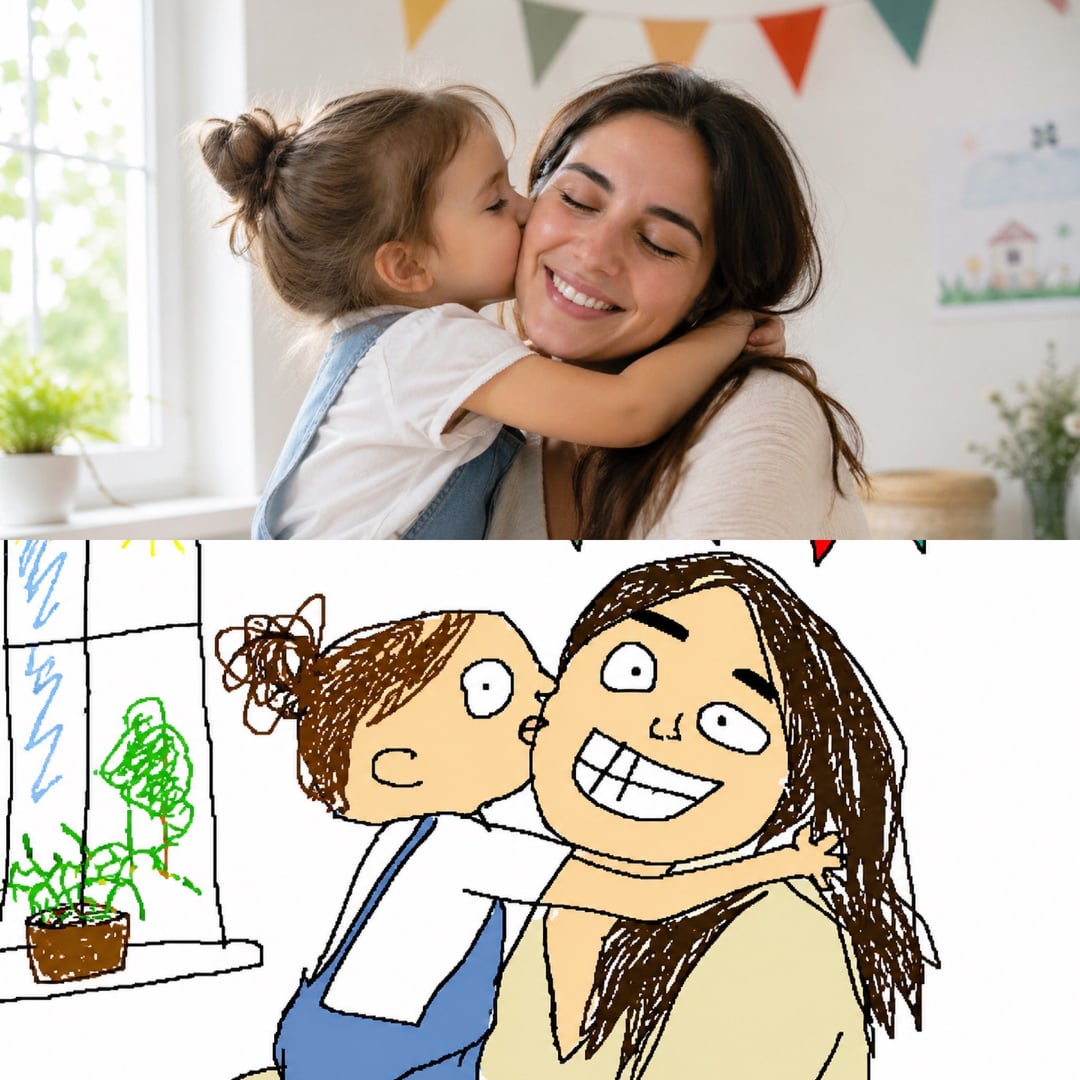
Upload an image and redraw it as a deliberately terrible MS Paint-style mouse drawing.

What makes a good MS Paint AI image

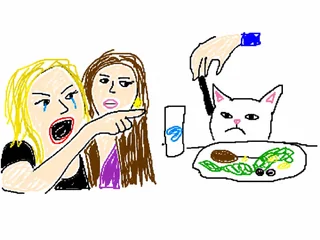
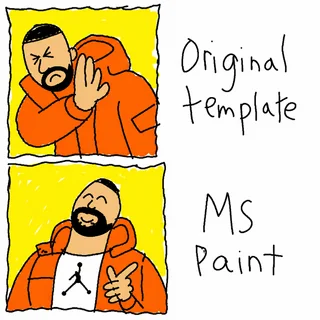
MS Paint prompts work best when you ask for simple structure instead of polished illustration. Use MS Paint for rough product sketches, meme reactions, classroom doodles, social posts, and deliberately awkward redraws. The best MS Paint result should look like it was made with a mouse on a plain white canvas, with simple shapes, uneven fill, wobbly outlines, and no polished illustration finish. Keep the uploaded subject recognizable, but make the MS Paint version feel intentionally primitive and funny.

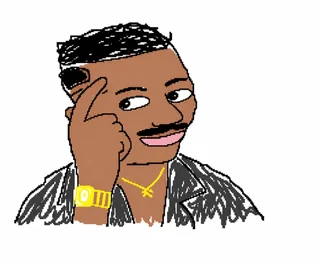
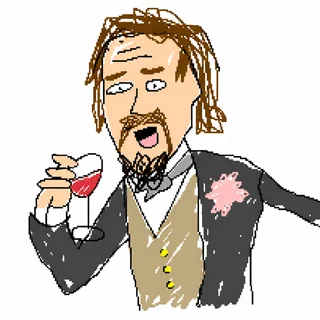
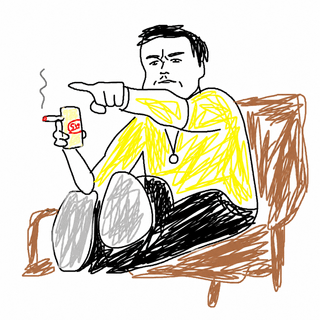
MS Paint style AI image generator example

Classic Look

White canvas, rough outlines, and flat colors

The strongest MS Paint results avoid cinematic polish. Ask for a plain white background, uneven black lines, basic fills, and visible mouse-drawn awkwardness.

White backgroundFlat colorsMouse drawing
Prompt workflow for MS Paint AI image generation

Prompt Control

Describe the subject first, then the bad drawing style

Start with the thing you want to see, then add MS Paint style, drawn with a mouse, shaky outlines, uneven proportions, and no polish.

Prompt recipeClumsy linesSimple shapes
Reference image workflow for MS Paint redraws

Image Redraws

Upload a reference image and redraw it badly

Switch to image-to-image when you want the AI to keep the original subject recognizable while turning it into a deliberately clumsy MS Paint redraw.

Image to imageReference redrawBadly drawn
Workflow

How to generate MS Paint images

Use a short prompt structure so the model knows both the subject and the drawing style.

1

Upload a reference image

Start with the image you want to redraw in a rough MS Paint style.

2

Keep the bad-drawing prompt

Use the default prompt for a clumsy white-background result with shaky mouse-drawn lines.

3

Generate with GPT Image 2

The page sends image-to-image requests through the GPT Image 2 image model.

4

Refine for worse lines

If the result is too clean, ask for more childish, uneven, low-resolution, or intentionally awkward details.

MS Paint prompt ideas

Use these prompt directions when you want a specific kind of simple MS Paint result.

MS Paint AI Image Generator FAQ

Common questions about creating MS Paint style AI images. Use MS Paint when the image should look intentionally plain, awkward, and mouse-drawn. A good MS Paint prompt says MS Paint style early, repeats white canvas, shaky outline, flat color, uneven proportions, and no professional polish. The MS Paint generator is useful for meme redraws, product doodles, reaction images, and intentionally bad reference edits because MS Paint should feel simple, low-resolution, and handmade. For best results, keep every MS Paint prompt focused on one subject and one simple joke. MS Paint output should avoid gradients, cinematic light, realistic rendering, glossy texture, and complex backgrounds. Ask for MS Paint style, white canvas, shaky mouse lines, flat color, awkward proportions, primitive shapes, and a childish low-effort finish so the image reads as intentionally rough rather than unfinished. Add MS Paint style to every refinement when the model becomes too realistic. MS Paint should mean crude drawing, plain canvas, rough linework, simple fill, and visibly imperfect mouse control. Keep MS Paint rough and funny. Now.

Create an MS Paint AI image

Generate a simple, funny, mouse-drawn image in classic MS Paint style.

Try MS Paint Generator